
Connect Claude to Figma
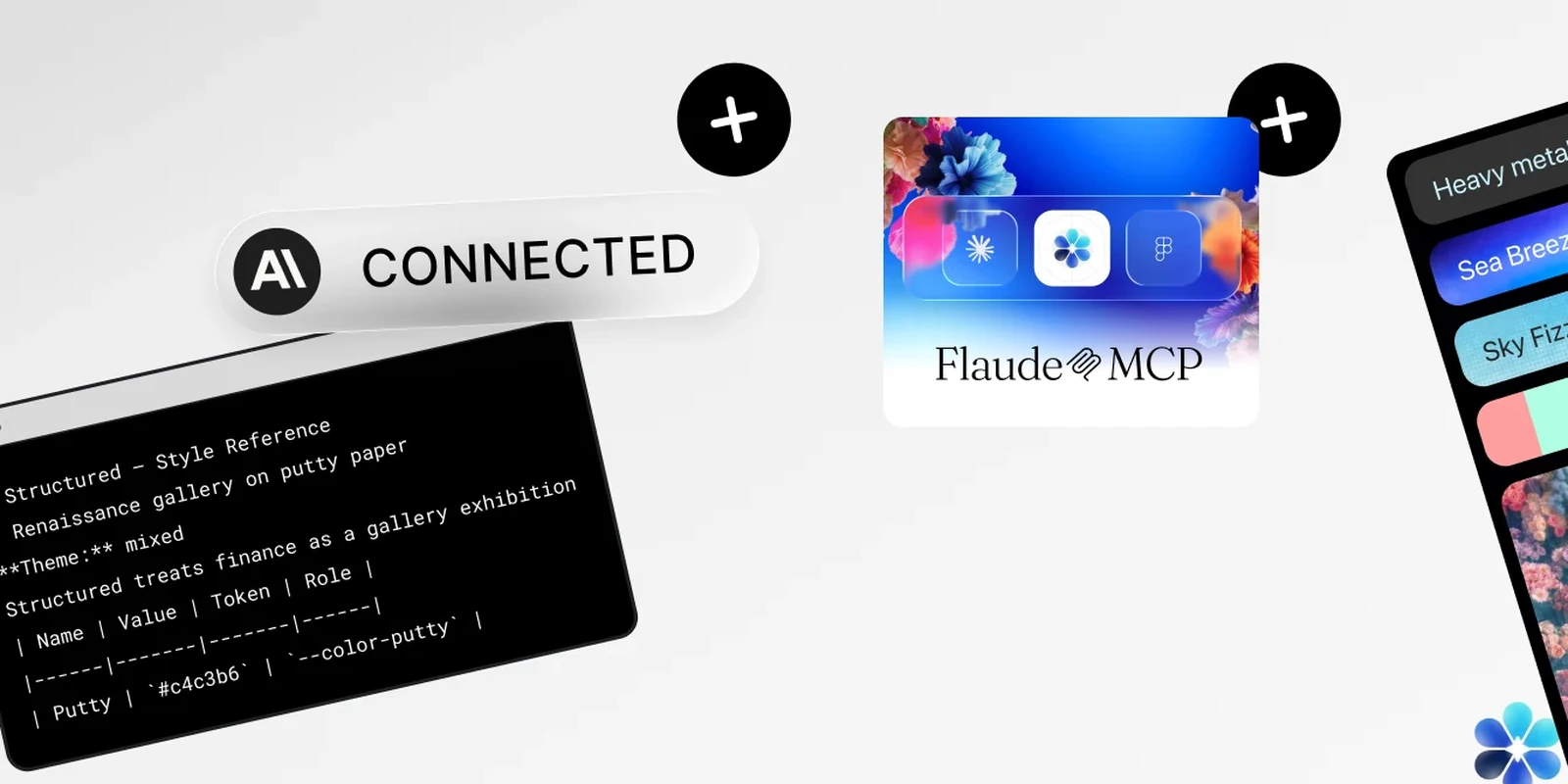
Four steps, about a minute. It runs over a live WebSocket on your own Claude subscription, so there’s no API key, no Figma API limits and no AI credits burned.
What the MCP does
Copy a flow, not a screenshot
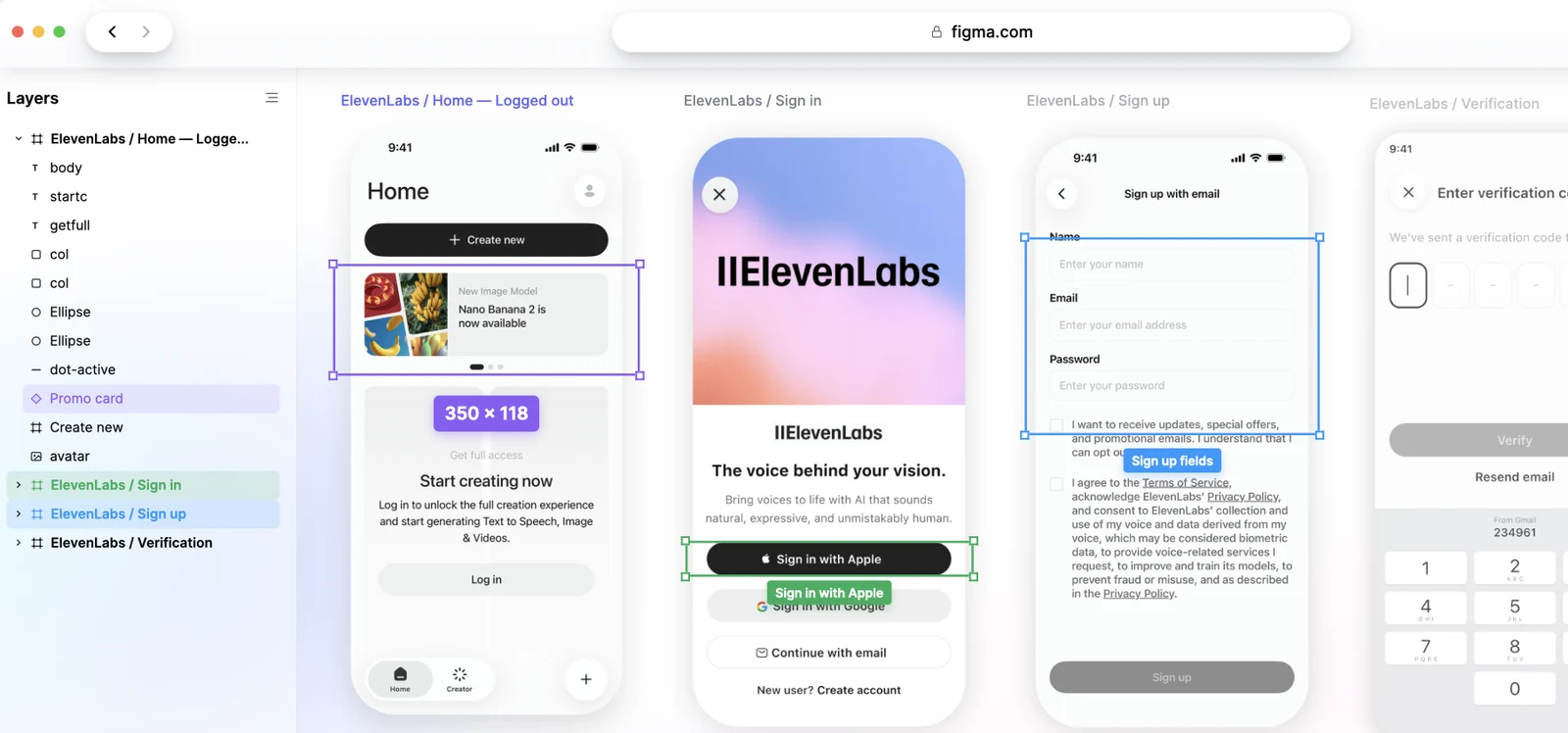
Paste any flow into Figma and every screen arrives as real, named, editable layers.
Make it your product
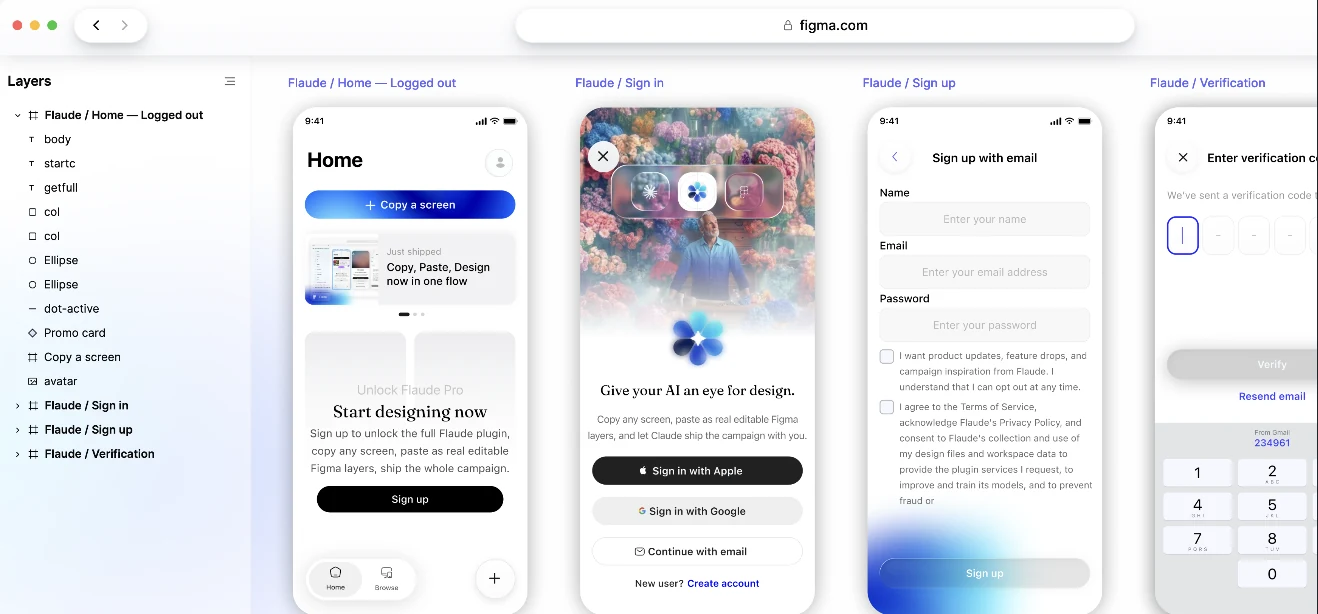
Point Claude at what you pasted and it restyles the real layers — colour, copy, components — as far as you ask.
Draw what does not exist
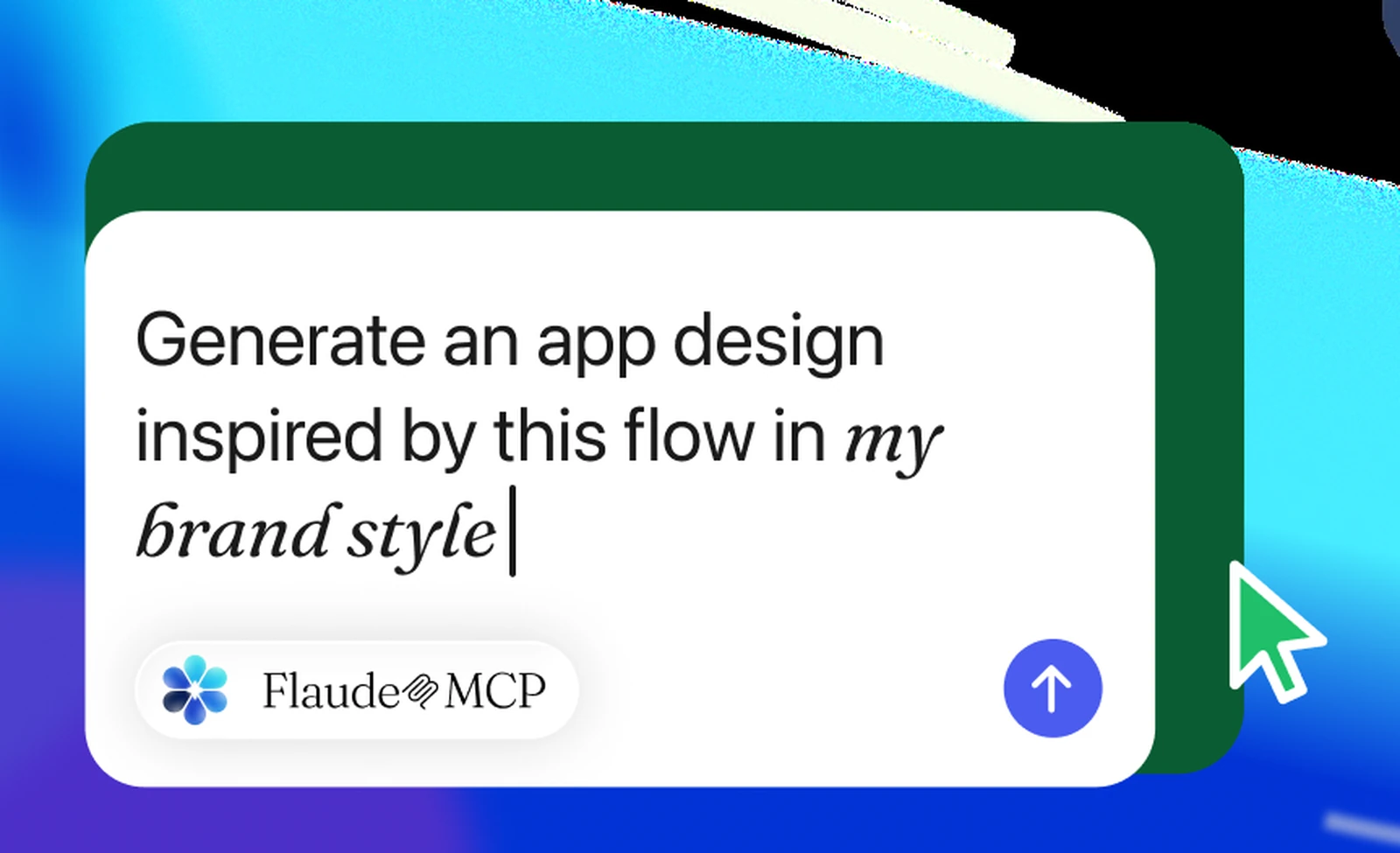
Nothing to paste? Describe the screen and Claude builds it from scratch, in the design system already in your file.
It learns your design system
Claude reads the styles, components and variables already in the file you have open, so what it builds matches your product instead of a template.
Use Claude in Figma as much as you want
It runs on the Claude subscription you already pay Anthropic for. No API key, no per-token bill. No Figma API rate limits, no Figma AI credits burned, no surprise lockouts. Here is the difference, with sources.
Figma's own API
Through Flaude
Request limits
Figma's own API
~10–50 calls a minute. Figma's REST API is rate-limited by plan and seat: roughly 10/min on free Starter, 50/min on Pro.[1]
Through Flaude
No REST limit at all. Flaude talks through the Figma plugin, which uses the Plugin API, not the rate-limited REST API.[4]
What happens if you go over
Figma's own API
Lockouts lasting days. Go over and you get 429s. Designers report a handful of calls triggering multi-day cooldowns.[2]
Through Flaude
Nothing to go over. No per-minute cap means no 429s and no cooldown to wait out.
AI cost
Figma's own API
3,000 credits a month. Figma's own AI runs on monthly credits: 3,000 on a Professional Full seat, 500 on others, and they don't roll over.[3]
Through Flaude
Zero Figma credits. Generation runs inside Claude, on the subscription you already pay for. Figma's credits only apply to Figma's own AI.[3]
Sources
- [1] Figma Developer Docs: REST API rate limits
- [2] Figma Forum: Pro users report multi-day 429 lockouts
- [3] Figma Help Center: How AI credits work
- [4] Figma Developer Docs: Plugin API overview
Figma's exact limits vary by plan, seat, and file location and may change; the multi-day lockout figures come from user reports, not Figma's published spec. Check Figma's documentation for the latest numbers.




Import it into Figma
In Figma: Plugins › Development › Import plugin from manifest → pick manifest.json from the unzipped folder.


Paste your URL into Claude
Open Flaude in Figma → Settings → copy your MCP URL, then add it in Claude under Settings › Connectors.

 04
04Design with Claude
Ask Claude to build or restyle a screen. It appears on your canvas as real, editable layers.
Flaude installs from a manifest rather than the Figma Community, which is why step 2 exists. Figma keeps imported plugins in Plugins › Development, so it stays one click away in every file after the first import.